It's not about the Tech. It's about the teach. --Ewen McIntosh

Tuesday, February 21, 2017

Seesaw Ambassador


I'm now an official Seesaw ambassador! What does this mean? I'll be paying attention to updates about new features and hold PD sessions with my colleagues and sharing my PLN. I have two very small Seesaw tidbits to share today. First, it's spelled Seesaw, not SeeSaw, See Saw, or seesaw. Second, in the new(ish) labeling feature, students can edit the look of their labels (size, shape, color, etc.). They can also drag and rotate the labels. Here's an example:


Best use practice: If you want your students to label a photo, diagram, etc. you post, have them click the 3 dots and choose copy and edit. Here's how it works:


Tuesday, February 7, 2017

Swivl as a Reflection Tool

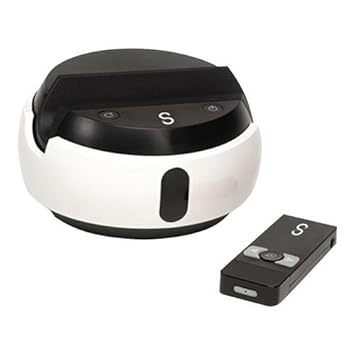
Thanks to Carolina Seiden, who introduced this transformative tool in our upper school a while ago, we now have a Swivl in our middle school that teachers can check out from the media center at any time. A Swivl records you as you teach so you can learn from reflecting on your teaching practices. It "follows" you as you move around the room. It is a self-reflective tool; all of the videos go to your own cloud account. You choose what do do with them: keep them, download them, store them in your Google Drive, share them, or delete them. Click on the pictures below to enlarge the photos of the Swivl.
      

Saturday, February 4, 2017

Silicon Valley

In January, I had the incredible opportunity to accompany a group of high school students on a week-long field trip to Silicon Valley. The purpose of the trip was for students thinking about majoring in a tech field to see and explore a number of major companies, as well as some small startups. We toured Google, Apple, Facebook, Instagram, and LinkedIn. We met with young entrepreneurs at Seesaw, Amplitude Analytics, and Kamkord.


We also visited Stanford University, Alcatraz, Giants Stadium, Fisherman's Wharf, and more. It was an unforgettable trip. Two of our students said they made decisions about their future based on this incredible experience!


Tuesday, January 31, 2017

Organize your Inbox with Gmail Filters

As part of my own professional growth for this year, I have set a goal to share weekly tips and resources that will help my colleagues save time and energy. Some are easy, beginner tips, and others are for those who aim to be power users. Here's the first Tuesday Tech Tips....


1. Gmail Tip: Are you stressed out just by looking at your inbox?


2. Super Easy Chrome Tip: You can permanently keep tabs open for your most important sites (such as email, MySA, Google Drive (or a specific folder in your Drive), Seesaw, Google Classroom, etc. Just right click on the tab and select "Pin Tab." When you close and reopen Chrome, all your pinned tabs will reopen.


3. New Seesaw Feature: Now you or your students can add customized LABELS to any drawing or photo.

4. Fun iOS (iPhone or iPad) app for teachers: Decide Now (Customizable wheel--add your students' names, tap the--and it will randomize selections to keep students on their toes. This app used to be free, but I think it may cost .99 now).

Monday, June 20, 2016

Presentation for NMC 2016 in Rochester, NY: Evolution of a Digital Citizen

On June 16, 2016, a team of four “AFTers” (Academic Facilitators of Technology) presented at NMC--New Media Consortium, an international EdTech Conference held this year in Rochester, New York. We presented on how we approach teaching Digital Citizenship in grades K-8. Our presentation was interactive. We prepared nine iMovie trailers to feature student work and our comprehensive approach to #DigCit. We provided the iPads and headphones (each attendee got their own earbuds; we ordered them in bulk on Amazon for next to nothing). They walked from station to station and scanned the QR codes for each grade level to launch the trailers. They were challenged to tweet a response. One of our presenters joined us virtually from across the country. She manned the Twitter feed


CLICK HERE to access our Presentation Slides and see our iMovie trailers. I hope it will inspire ways to incorporate Digital Citizenship in your school.


SaveSave

Tuesday, January 26, 2016

I Stream, You Stream, We All Stream...

My First Periscope Broadcast…Newbie Insights for Teachers New to Periscope

The past year has been explosive for the live streaming movement. UStream, Meerkat, Periscope–and now even Facebook and YouTube–are examples of live streaming platforms that allow ordinary people to broadcast live to the world. Of course, a quick glance can reveal a lot of boring, uneventful, ridiculous, and even shady streams. I had heard about Periscope in the past few months, but never checked it out until recently.
Our 7th grade students recently visited a local sea turtle hospital as part of a two-week community service project. They held a “turtle toy (supply) drive,” did a beach clean-up, and made a video for an iBook that will eventually be published on iTunes. I was so excited about this project (collaborative effort of science teacher Stacy O’Connell and media specialist Danielle Wishka as part of her ADE Project) that, even though I had no experience–and not a lot of confidence being on camera–I decided to broadcast the field trip on Periscope.  I did a couple of practice scopes (I’m so glad I did!!!) and went for it.


Here are a few things that I have learned in these first few broadcasts:
  • Check your school’s policy regarding social media and photographing students. I obtained permission in advance and took steps to protect our students’ privacy.Do a test run! In mine, I actually forgot to add a title…
  • Type out your title on another app (such as Notes), then copy & paste onto the title entry bar. (It’s easy to make a mistake if you type your title on the fly.)
  • Use hashtags to attract the appropriate audience for your scope.
  • Use emojis in your title to draw attention (but overkill can be annoying). I went with:🐢☀️🐢 7th Grade Community Service Project at South Florida #SeaTurtle Hospital #PeriscopeEDU #PeriscopeTeachers 🐢☀️🐢
  • You may want to pre-tweet your broadcast.
  • Don’t forget to tweet out your broadcast (see below).
  • Limit the length of your broadcast. Mine was way too long-90 min; however, I knew in advance that people wouldn’t be viewing the entire broadcast.
  • Settings–there are 4 icons control the privacy of your broadcast:
  • Location (circled in blue in diagram, rt.): Think carefully about this one, especially if your scope involves students. When selected, your broadcast will appear as a red dot on the map and anyone on Periscope can see your location and comment as you broadcast.
  • Private broadcast (green circle): allows you to limit your broadcast to specific people. This is good for testing things out!
  • Limit chat (pink circle): If you select, only people you follow on Periscope will be allowed to chat (add comments and give you hearts).
  • Twitter icon (yellow circle): This will automatically tweet out your broadcast.
  • I chose not to broadcast my location for this scope for security purposes and because I didn’t want random people (aka trolls) to view or comment on my scope. Not broadcasting your location means your audience will be limited to those who follow you on Periscope and Twitter (and anyone with whom they share).
It was an incredible experience to broadcast our students in action making a difference for these sea turtles! The biggest thing I gained from the process is to discover how much I have to learn! The experience left me excited to explore more ways to showcase the work of our students and teachers, as well as to continue make global connections.

Friday, January 15, 2016

The Critical Five Minutes of Class

“You’ll never get a second chance to make a first impression.” This often quoted truth is so common, in fact, that its origin is unclear. Some attribute it to Oscar Wilde, others to William Safire. Regardless, it’s certainly not a hotly debated issue. In general, people understand the importance of first impressions. In his article “How Many Seconds to a First Impression?” which was posted in The Association for Psychological Science, Eric Wargo writes about how–whether fair or not, we are all judged by a number of things: our appearance, how we dress, our age, etc. The part that stinks is that most of these judgements are upon things over which we have no control! As educators, we have the responsibility to focus on those things we CAN control. The first day of school is perhaps the most notable occasion we have to strike a positive first impression with our students, but fortunately, we have a new opportunity every day we see our students to impress them–or not. The first five minutes of class each day will set the tone for the next fifty. Teachers need a few minutes to gather thoughts and resources between classes, take attendance and just simply RESET.

I recently walked into our library, where our Media Specialist Danielle Wishka (@daniwishtweets) had this image on display at the mediascape. She had a fun song playing and I couldn’t help but noticed that all the students were typing away on their laptops as they rocked out to the song. At the end of the song–less than 5 minutes into class, the students were fully prepared for class. No prompting, nagging, or redirecting was necessary.
There are MANY ideas out there for these “bell ringer” activities. Here are a couple of links to some excellent blog posts with many ideas:
Find a few activities you like and try something new! Have other ideas? Please add them to the comments below!